Why Firestick Is the Best Device for British IPTV
Out of every device our customers use — Smart TVs, MAG boxes, Android boxes, the lot — the Amazon Fire TV Stick is the one we recommend most often. There are three reasons, and they are worth understanding before you start.
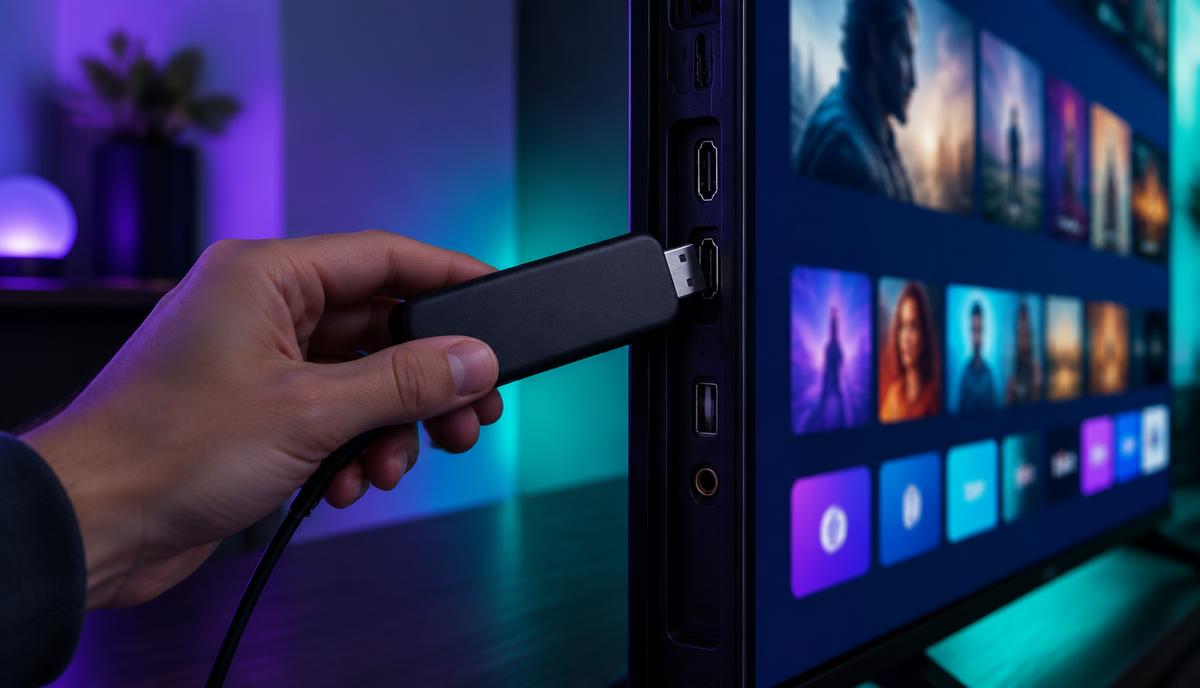
First, it is cheap. A Fire TV Stick Lite is around £35, and the Fire TV Stick 4K Max sits at £69.99. That is less than a single month of a full Sky bundle (see our Sky TV vs British IPTV comparison for the full maths), and it gives you a device that plugs into any HDMI port and turns any modern TV into a smart TV. You can take it to a holiday let or a parents' house and have your British IPTV setup running on a strange telly in five minutes.
Second, it is tiny and portable. The whole device is the size of a chunky USB stick. It tucks behind the TV out of sight and draws power from a small adapter — no rats' nest of cables, no separate box on the shelf.
Third, and most importantly, Fire OS lets you sideload apps through Amazon's own Downloader utility. That means you can install IPTV Smarters Pro — the player our service is built around — with no rooting, jailbreaking or technical hoop-jumping. It is the route Amazon themselves designed for this exact purpose.
What You Will Need Before Starting
Gather these before you sit down with the remote — it saves hopping back and forth:
If you do not own a Firestick yet, the table below compares the current 2026 models for IPTV use. The Fire TV Stick 4K Max is the sweet spot for most households — the extra RAM and Wi-Fi 6 make a noticeable difference when the EPG is loading or you are switching between 4K channels.
If you already own any Firestick — even an older one — it will work fine. Do not feel pressured to upgrade just to use British IPTV.
- An Amazon Fire TV Stick — any model from Lite through to 4K Max, or a Fire TV Cube.
- An active British IPTV subscription. If you have not ordered yet, pick a plan — your credentials will be with you within minutes.
- A stable internet connection. 10 Mbps is comfortable for HD; 25 Mbps or more for 4K. Almost every UK fibre line easily exceeds these speeds.
- The credentials we sent you by WhatsApp and email — your username, password, and server URL (collectively called Xtream Codes).
- About 10 minutes of uninterrupted time.
Which Firestick should I buy?
If you do not own a Firestick yet, the table below compares the current 2026 models for IPTV use. The Fire TV Stick 4K Max is the sweet spot for most households — the extra RAM and Wi-Fi 6 make a noticeable difference when the EPG is loading or you are switching between 4K channels.
If you already own any Firestick — even an older one — it will work fine. Do not feel pressured to upgrade just to use British IPTV.
Step 1 — Enable Apps from Unknown Sources
By default, Fire OS blocks app installs from anywhere outside the Amazon Appstore. We need to flip that off for one specific app (Downloader) — not system-wide. This is the only "technical" step in the whole process and it takes 30 seconds.
From the Fire TV home screen:
On older Fire OS versions, this option is called "Apps from Unknown Sources" and is a single global toggle rather than per-app. The effect is the same — once you flip it, you can install the Downloader app and then the IPTV player.
Step 2 — Install the Downloader App
Downloader is a free utility by AFTVnews that is published in the official Amazon Appstore. It is Amazon's sanctioned route for sideloading APKs on Fire OS — nothing dodgy, no warnings, no separate account required.
The app will land on a simple home screen with a single URL bar. We will come back to this in Step 4.
Step 3 — Receive Your British IPTV Credentials
Once your order goes through on our checkout page, we activate your line within minutes and send you the following by both WhatsApp and email:
These three details together are called Xtream Codes — the standard format used by virtually every IPTV provider in 2026. Save them somewhere safe. You will need them every time you set up a new device or reinstall the app.
🔒 Keep your credentials private. Do not share your username and password publicly or post screenshots showing them. If your credentials leak and end up being used on multiple devices outside your plan, the line can be locked for your protection. Message us on WhatsApp if that ever happens — we'll reissue fresh ones immediately.
- Your username
- Your password
- Your server URL (also called the host or portal URL)
Step 4 — Install IPTV Smarters Pro via Downloader
IPTV Smarters Pro is the player our service is built around. It is free, well-maintained, and has a clean EPG (electronic programme guide) that British viewers find familiar straight out of the box.
Inside the Downloader app:
If you see a warning that "Your device isn't allowed to install unknown apps from this source", it means Step 1 has not been applied properly. Go back to Settings → My Fire TV → Developer Options → Install unknown apps and confirm Downloader has install permission. Then try Step 4 again.
Step 5 — Log Into IPTV Smarters Pro
The newly installed app does not appear on the Fire TV home row by default. Press the home button on your remote, scroll down to Your Apps & Channels, and you will find IPTV Smarters Pro near the end of the list. Open it.
You will see a brief loading animation while IPTV Smarters Pro pulls your channel list and EPG from our servers. This takes 30–60 seconds the very first time and is much quicker on subsequent launches.
- Any name — give the playlist a label (e.g. "British IPTV"). This is just for your reference.
- Username — paste from the credentials we sent.
- Password — paste from the credentials we sent.
- Server URL — paste exactly as supplied. Include http:// and any port number (something like :8080 or :80 at the end).
Step 6 — Start Watching
You are done. The dashboard shows three main tiles:
A few first-time tips that make a noticeable difference:
🎯 Sports fan tip: If you mainly want British IPTV for football, pin Sky Sports Main Event, Sky Sports Premier League, and TNT Sports 1 to your favourites. Saturday 3pm kick-offs land on the Premier League channels — the broadcast restrictions that apply to terrestrial Sky and TNT do not affect a normal IPTV stream.
- Live TV — every UK channel, sorted by category. BBC, ITV, Channel 4, Sky Sports, TNT Sports, Premier League channels, news, kids', international, the lot.
- Movies — the on-demand film library, refreshed weekly.
- Series — TV shows and box sets organised by genre and year.
- Long-press any channel to add it to Favourites. Build a short favourites list for the channels you actually watch — it saves scrolling through 30,000 of them every evening.
- Press the menu button on your remote while watching a stream to switch audio tracks (handy for foreign-language matches) or video quality.
- The EPG tab shows what is on now and next across every channel — useful for working out the evening's telly without flicking through the lot.
- Inside Settings, you can enable auto-start last channel so the Firestick boots straight into whatever you were last watching.
Troubleshooting Common Firestick IPTV Issues
If something does not work first time, the fix is almost always one of the five issues below. I have ordered them by how often we see them.
Buffering on Firestick is almost always a Wi-Fi issue, not an IPTV server issue. Things to try, in order:
Double-check the server URL includes http:// at the start and any port number we sent (something like :8080 or :80 at the end). Username and password are case-sensitive — copy them exactly. If the credentials still will not take, message us on WhatsApp — sometimes a server has rotated and we just need to reissue.
This is usually a cache issue on older Firestick models. Go to Settings → Applications → Manage Installed Applications → IPTV Smarters Pro → Clear Cache. Restart the Firestick. If it still crashes, uninstall the app and reinstall it through Downloader using the same URL.
Open IPTV Smarters Pro and go to Settings → EPG → Update EPG, then wait two minutes. If it is still empty after that, log out and log back in — this forces a fresh pull from our server.
Rare, but easy to fix: pause the stream for five seconds and resume. If it persists across multiple channels, restart the Firestick (hold the Home button → Settings → Restart).
Channels buffer or freeze
Buffering on Firestick is almost always a Wi-Fi issue, not an IPTV server issue. Things to try, in order:
"Invalid credentials" when logging in
Double-check the server URL includes http:// at the start and any port number we sent (something like :8080 or :80 at the end). Username and password are case-sensitive — copy them exactly. If the credentials still will not take, message us on WhatsApp — sometimes a server has rotated and we just need to reissue.
The app crashes when I open it
This is usually a cache issue on older Firestick models. Go to Settings → Applications → Manage Installed Applications → IPTV Smarters Pro → Clear Cache. Restart the Firestick. If it still crashes, uninstall the app and reinstall it through Downloader using the same URL.
EPG (TV guide) is empty
Open IPTV Smarters Pro and go to Settings → EPG → Update EPG, then wait two minutes. If it is still empty after that, log out and log back in — this forces a fresh pull from our server.
Audio out of sync with video
Rare, but easy to fix: pause the stream for five seconds and resume. If it persists across multiple channels, restart the Firestick (hold the Home button → Settings → Restart).
Frequently Asked Questions
Yes — Fire TV Stick Lite, Fire TV Stick (3rd gen), Fire TV Stick 4K, Fire TV Stick 4K Max and Fire TV Cube all run IPTV Smarters Pro happily. The 4K Max is the smoothest experience overall, especially for the EPG and 4K channels, but any modern Firestick works.
A VPN is optional. British IPTV works perfectly without one, but many UK users prefer running a VPN for privacy on shared networks or while travelling. If you do use one, pick a provider with UK servers and a no-logs policy, and avoid frequent server-hopping — that can flag the line as suspicious activity.
Yes, with our multi-connection plans. Each extra connection is +50% of the base plan price and lets you stream on a separate device at the same time. We support up to 5 simultaneous connections, which is enough for the whole household. You can add extra connections at checkout.
Yes. The Downloader app is published in the Amazon Appstore and is the route Amazon themselves designed for sideloading on Fire OS. IPTV Smarters Pro is a well-established player used by thousands of legitimate IPTV providers worldwide. There is nothing dodgy about either step.
Message us on WhatsApp and we will walk you through it live. Most setup queries are sorted within five minutes. You can also visit our device setup hub for written guides covering other devices like Smart TVs, MAG boxes, and Android.
We offer a 3-day money-back guarantee. If the service does not work for you, message us within 3 days of activation and we will refund the full subscription. Full details are on our Refund Policy page.
Does British IPTV work on every Fire TV Stick model?
Yes — Fire TV Stick Lite, Fire TV Stick (3rd gen), Fire TV Stick 4K, Fire TV Stick 4K Max and Fire TV Cube all run IPTV Smarters Pro happily. The 4K Max is the smoothest experience overall, especially for the EPG and 4K channels, but any modern Firestick works.
Do I need a VPN to use British IPTV on Firestick?
A VPN is optional. British IPTV works perfectly without one, but many UK users prefer running a VPN for privacy on shared networks or while travelling. If you do use one, pick a provider with UK servers and a no-logs policy, and avoid frequent server-hopping — that can flag the line as suspicious activity.
Can I install British IPTV on more than one Firestick?
Yes, with our multi-connection plans. Each extra connection is +50% of the base plan price and lets you stream on a separate device at the same time. We support up to 5 simultaneous connections, which is enough for the whole household. You can add extra connections at checkout.
Is sideloading IPTV Smarters Pro safe?
Yes. The Downloader app is published in the Amazon Appstore and is the route Amazon themselves designed for sideloading on Fire OS. IPTV Smarters Pro is a well-established player used by thousands of legitimate IPTV providers worldwide. There is nothing dodgy about either step.
What if I get stuck during setup?
Message us on WhatsApp and we will walk you through it live. Most setup queries are sorted within five minutes. You can also visit our device setup hub for written guides covering other devices like Smart TVs, MAG boxes, and Android.
How do I cancel if I am not happy?
We offer a 3-day money-back guarantee. If the service does not work for you, message us within 3 days of activation and we will refund the full subscription. Full details are on our Refund Policy page.
Conclusion: Ready to Watch?
Once IPTV Smarters Pro is installed and logged in, you will rarely need to touch it again. Updates to the channel list and EPG happen automatically on our end. The only time most customers come back to this guide is when they buy a second Firestick for another room — at which point the whole process takes about three minutes the second time round.
If you hit any snag along the way, however small, message us on WhatsApp. We answer within 15–30 minutes, day or night. There is no question too basic — we would much rather walk you through a fix than have you give up on the setup five minutes from the finish line.
Not subscribed yet? View our pricing or read our free trial guide to test the service before paying. If you're mainly here for the football, our Sky Sports IPTV guide covers exactly how Premier League coverage works on British IPTV — you can have everything set up and be watching kick-off inside the hour.
Oliver is a UK-based streaming and home entertainment writer with over seven years of experience reviewing IPTV services, streaming devices, and cord-cutting setups. Based in Leeds, he helps British households trim their TV bills without losing the channels they actually watch.
30,000+ live UK channels, every Premier League match, Sky Sports, TNT Sports, and 150,000+ films on the Firestick you already own. 12-hour free trial. 3-day money-back guarantee.
British IPTV: The Complete 2026 UK Guide
Best IPTV UK 2026: Top Providers Compared
Sky Sports IPTV: Every Premier League Match 2026
Ready to Try British IPTV?
30,000+ live UK channels, every Premier League match, Sky Sports, TNT Sports, and 150,000+ films on the Firestick you already own. 12-hour free trial. 3-day money-back guarantee.
More from the British IPTV Blog
British IPTV: The Complete 2026 UK Guide
Best IPTV UK 2026: Top Providers Compared
Sky Sports IPTV: Every Premier League Match 2026